

You’ve been asking for it. Now it’s all yours!
To give you all the flexibility you need to compile the complete picture of your finances, we’ve created the manual account setup feature.
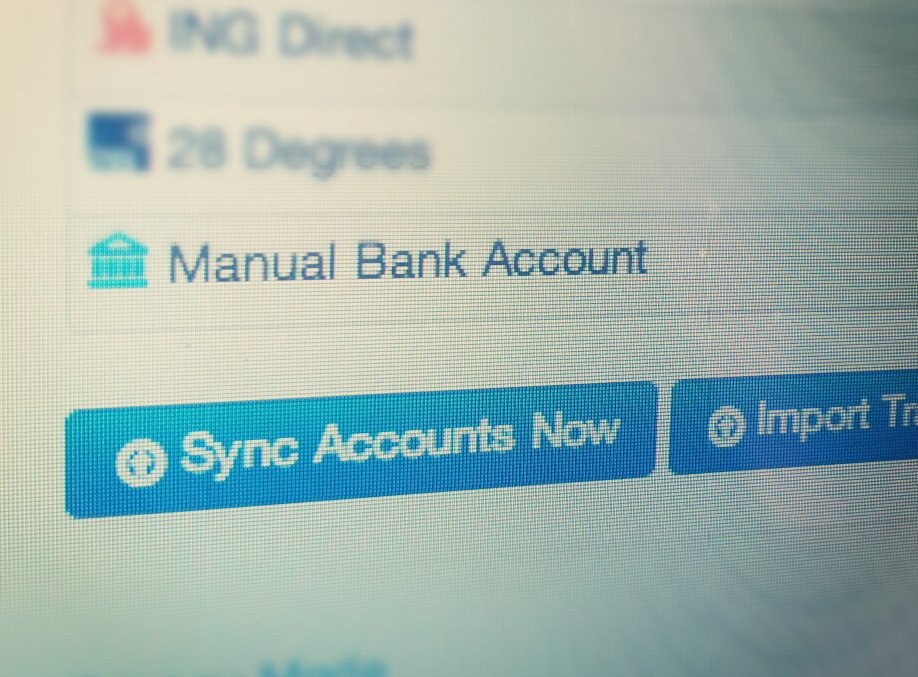
It’s really simple. For all the institutions we’ve yet to support with live feeds, you can now manually set these up in 3 steps.
Quick How-to
Step 1 – Go to the “Setup” page and find “ADD BANK” in the left bar. Then select “Manual Bank Account” in dropdown (at the bottom). You should see a little blue bank-building icon.
Step 2 – Enter a custom account name, account type (loan, savings etc), and the account balance.
Step 3 – Then use the “Import Transactions (OFX, QIF)” on the left bar of the “Setup” page (below ADD BANK) – to upload the QIF / OFX output from your financial institution to your created account.
That’s it! You now have all your finances in the same place!
Happy money managing.
Bosco

From where can I download QIF template to import transactions manually? If this option is not available, what are columns QIF file should contain?
It should be in your internet banking. otherwise use this converter – http://csvconverter.gginternational.net/
This manual upload option crashes whenever I use it… because a few of my financial institutions aren’t supported by Pocketbook all I can do is upload manually, but I cant even do that.
Bosco – is there a trick with uploading the QIF documents? because it just is not working for me.. and yes I am using the right QIF format as stipulated (dd/MM/yyyy)…
Please HELP!!
-Ian